November 18, 2026 · admin
Send Large Videos From Android to Mac: 5 Easy Offline Steps
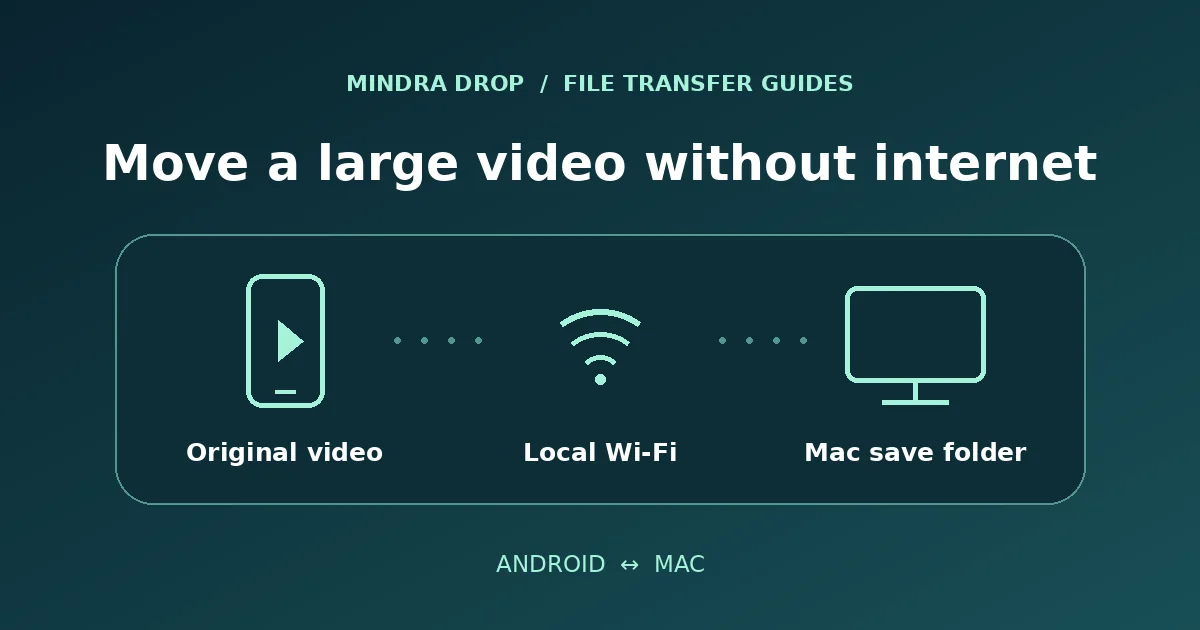
To send large videos from Android to Mac without internet, copy the original file over a direct local Wi-Fi connection or use a USB data cable. Don’t send it as a chat attachment if you need the original for editing. The most useful checks are whether the full file is stored on the phone, whether the Mac has room, and whether the copy actually plays.
On this page
1. Prepare the phone and Mac before going offline
If you’ll be transferring footage somewhere with poor internet, set up Mindra Drop while you still have a connection. The free Android companion requires Android 10 or later, and the one-time-purchase Mac app requires macOS 14 or later. Check Mindra Drop availability, allow the requested nearby-device permissions and send a small file first so you know the devices can pair.
On the Mac, check the receiving folder and free space on the drive that holds it. If you’re shooting several gigabytes, add up the clips rather than estimating from a single file. Leave some room for your editing app’s working files. If you plan to save onto an external drive, connect it and confirm it’s writable before starting.
2. Select the original video, not a cloud preview
Open the video’s details and note its name, size and duration. Use the phone’s file picker to locate the original. For a video shot on the phone, the Camera folder under DCIM is a good place to start. Prefer the saved video file to an export from a messaging app if you need to keep the original quality.
If the clip plays only when the phone is online, it may be streaming from a backup rather than reading a local copy. Download the item from Google Photos while you have internet, and verify it’s available offline before you travel. A direct transfer can copy a file already on the phone; it can’t recover a remote-only video while you’re offline.
3. Send large videos from Android to Mac over Wi-Fi
Mindra Drop uses Bluetooth to connect the devices and requires direct local Wi-Fi for a selection over 32 MiB in total. That’s a threshold for the whole selection, not for each clip. A short 4K video can exceed it on its own. Keep Wi-Fi available on both devices: this connection carries the file locally and doesn’t need a shared router or internet.
- Open Mindra Drop on both devices and choose one original clip with the Android file picker.
- Select your Mac, then follow the Wi-Fi prompt on either screen if one appears. Keep the phone near the Mac until the copy finishes.
- Look for the completed file in the selected Mac folder. If the connection stops, retry one clip before queuing the rest. Don’t count a partial copy as a backup.
4. Verify the copy before deleting the original
Find the received file in Finder, select it and use File → Get Info to compare its size with the source. Open it in QuickTime Player or your editor, then check that you can seek near the end and play the audio. For multi-clip batches, also compare the number of files received with the number you sent.
If the sizes match but one player won’t open the video, try another player or the editor you’ll actually use. Container and codec support can vary. Changing the file extension doesn’t convert the video. Keep the Android original until you’ve tested playback and, for footage you can’t replace, made a separate backup.
For an editing handoff, keep the source clips in their own folder and export the finished video somewhere else. That makes it easier to tell which file to send back to Android and avoids replacing the original with a compressed export.
5. Switch to USB when wireless isn’t the best fit
Use a cable if the local connection keeps dropping or you’re copying a full day of footage at a desk. Google’s USB file transfer instructions show how to unlock the phone and change the USB mode to File transfer. On the Mac, use an MTP app such as OpenMTP to find the clips and copy them. If the phone only charges, try another data-capable cable.
AirDrop through Quick Share is an option on some phones, but the QR fallback needs internet. See the Android-to-Mac AirDrop guide if your Mac doesn’t show up, or compare four ways to move files between Android and Mac if you also handle photos and documents.
Can you send large videos from Android to Mac without losing quality?
Yes. Copy the original file rather than exporting it through an app that compresses video. A file copy does not change the video’s resolution or codec. If your editor needs a different format, make a separate converted copy on the Mac and keep the original.
When to use Mindra Drop for video
For a one-off archive, use a cable if it’s handy. If you send large videos from Android to Mac after every shoot, Mindra Drop lets you move the originals locally and send the finished export back from the Mac without a cloud upload. See the Mac app and free Android companion.